

Newsletters
Read email newsletters in Glanced, not your inbox. Each subscription gets a unique email address, so new issues land in your feed and your inbox stays clean.
Get newsletters out of your inbox and into Glanced, where new issues land in your feed.
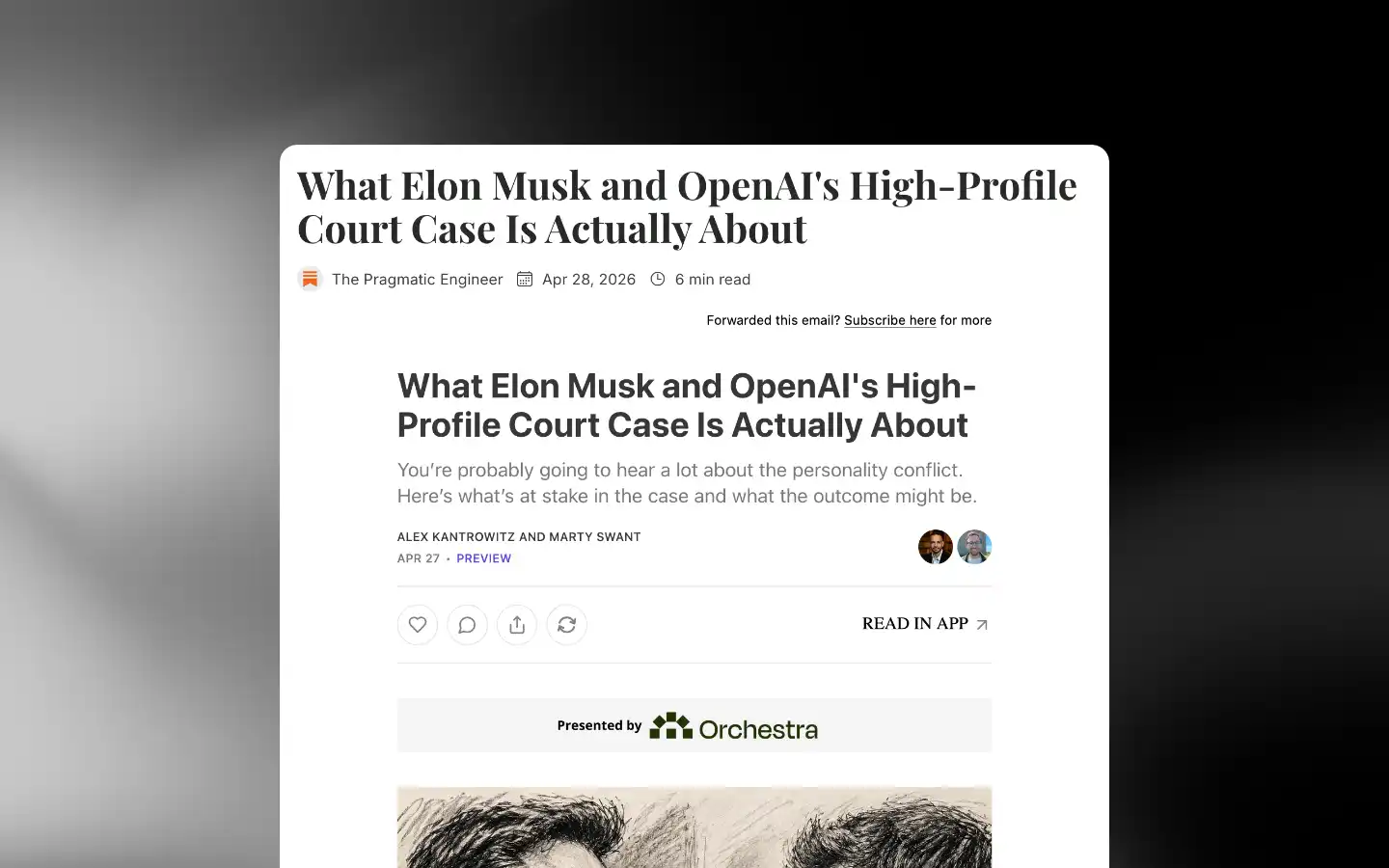
Add a newsletter
Go to Organization → Newsletters and click Create. The email address is copied automatically.
Use the copied email address when subscribing to a newsletter. New issues appear in your feed within a minute or two.
Create a separate newsletter for each subscription to keep your feeds organized.
Manage newsletters
Right-click (long press on mobile) a newsletter in the sidebar for actions:
- Mark as read/unread: Mark all articles in the newsletter as read or unread
- Rename: Change the newsletter display name
- Move to folder: Move the newsletter to a different folder. See Folders for details
- Pause/Unpause: Pause or resume fetching new issues without losing existing ones
- Pin/Unpin: Keep the newsletter pinned at the top of the sidebar
- Unsubscribe: Remove the newsletter and all its articles
Go to Organization → Newsletters to manage all newsletters at scale. Use the action button on each row to rename, copy email, pause, or delete.
Bulk actions
Select newsletters with checkboxes, then pick an action:
- Move to folder: Move selected newsletters to a chosen folder
- Pause/Unpause: Pause or resume updates for selected newsletters
- Pin/Unpin: Pin or unpin selected newsletters in the sidebar
- Unsubscribe: Remove selected newsletters and all their articles
How is this guide?